Tab Key
Moves the cursor to the next field from left to right. In this program, the tab key begins in the recipe number field and will continue to the last cell of the last ingredient. You may modify a cell then tab to the next. This is the same function as an enter key. In the method of preparation, use the Enter Key to add space between lines and the Space bar to add space within a line.
Escape Key
Removes the cursor from an expected tab sequence. For example, if you place the cursor in the middle of an ingredient row, hit the escape key to remove focus from that cell (you do not have to "tab" or "enter" through the row.)
Enter Key
Accepts the displayed value or text then moves to the next field. From left to right.
Pull down menus
Use the mouse to click the down area to display pull-down menus. Pull down to search on ingredients from the ingredient name column. Pull down on the vary, yield and process arrows to display the current available selections.
Pop-Up Bubbles
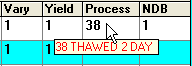
The user can review information about specific cells using Pop-Up Bubbles which open by hovering the mouse pointer over those cells.
The cells that can be reviewed this way are: Vary, Yield, Process Pointers, and NDB Pointers.