Modify Use Switches
A Use Switch defines when an ACI item is going to be served during the week. Each meal served within a location has an associated Use Switch (3 meals a day for 7 days would mean there are 21 Use Switches). For every Use Switch, an ACI item must be defined as either being served at that meal (indicated by a "1") or NOT being served at a meal (indicated by a "0").
Example 1

In Example 1, the location has 3 meal periods defined, so there should be 21 Use Switches to define. However, after looking at Sunday, it appears that the BRK meal is CLOSED. Which means that this location is never open for that meal period (as defined in Location Maintenance, "Always Closed").
Also, notice in Example 1, all of the Use Switches are "On" (as denoted by a 1 in the fields). This indicates that the item is served at every meal throughout the week.
Example 2

In Example 2, the Use Switches for BRK everyday are "Off" (as denoted by a 0 in the fields). Since the all of the Use Switches are off at BRK, this means that the item is not served at breakfast for the entire week.
Users can modify Use Switches in several ways:
Direct Input
Click in the field and enter a "0" (Off) or "1" (On).
By Column or By Row
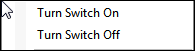
Select one or more columns or rows, then using the mouse, right-click to open the context menu and select "Turn Switch On" or "Turn Switch Off" as appropriate.
Create and Apply Use Switch Templates
Use Switch Templates can be created to make it easier to define Use Switches for items or recipes being added to a season.
Create a Use Switch Template
To create a Use Switch Template, first select the Use Switch Tab for an item or recipe located on the Detail Tab. Then, select all of the rows on the Use Switch Tab and right-click to bring up the context menu:
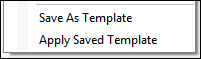
From the context menu, select "Save As Template".
Apply a Use Switch Template
Once a Use Switch Template is saved, anytime a new item is added to the ACI Season, the Use Switch Template will be applied by default. This will help users create or modify seasons more quickly. Additionally, this option can be used to re-apply a Use Switch Template after it has been edited.
Edit Use Switch Template
From the File Menu, select this option to open the Edit Utility. Modify the fields for the day\meal as necessary. Click OK to save any changes.